
Microsoft Authenticator Locked on iPhone: Fix Guide
Seeing microsoft authenticator locked on iphone can be alarming, especially when you need the app to approve a work login, retrieve a verification code, or access an important Microsoft account. In many cases, however, the lock screen is not evidence that your Microsoft account has been suspended. Microsoft Authenticator includes an App Lock feature designed to protect verification codes, account information, settings, and sign-in approvals. When App Lock is enabled, Authenticator asks you to authenticate with the device PIN or biometric authentication whenever you open the application.
There is another possibility on newer versions of iOS: the Authenticator application itself may have been locked at the iPhone operating-system level using Apple’s Require Face ID feature. Apple allows downloaded applications to require Face ID, Touch ID, or the device passcode before they open.
That means a microsoft authenticator locked on iphone problem can actually involve two different security layers: Microsoft Authenticator’s own App Lock and the iPhone’s application lock.
The correct solution depends on which lock you are seeing. This guide walks through the safest troubleshooting sequence, including Face ID failures, app settings, iPhone restarts, new-phone recovery, iCloud backups, work accounts, and situations where microsoft authenticator won’t unlock.
1. Why Is Microsoft Authenticator Locked on iPhone?
App Lock is a security feature, not necessarily an error
If you are asking why is my microsoft authenticator locked, first understand what App Lock is designed to do.
Microsoft says App Lock protects information stored inside Authenticator and requires your device PIN or biometric authentication each time the application is opened. It also prompts for authentication before approving sign-in notifications, helping ensure that the person approving the request is the device owner.
App Lock is enabled by default when a PIN or biometric method has been configured on the device.
Therefore, seeing microsoft authenticator locked on iphone immediately after opening the application can be normal behavior.
The message does not automatically mean:
- Your Microsoft account is banned.
- Your MFA account has been deleted.
- Your organization disabled Authenticator.
- Your verification codes have disappeared.
- Someone changed your Microsoft password.
If my microsoft authenticator app is locked but Face ID appears immediately, try completing the Face ID authentication before changing account settings.
Authenticator may be protected by two locks
The second reason for microsoft authenticator locked on iphone is Apple’s own app-locking feature.
Apple allows an iPhone user to touch and hold an application and choose Require Face ID, Require Touch ID, or Require Passcode. Once enabled, the user must authenticate before that application opens. When the application is closed, Apple locks it again.
You could therefore have:
- An iPhone-level Face ID lock.
- Microsoft Authenticator App Lock inside the application.
If both are active, you may authenticate once to open Authenticator and then see another authentication request from Microsoft Authenticator itself.
This distinction is essential when troubleshooting microsoft authenticator app locked on iphone, because disabling one layer does not automatically disable the other.
🧭 Explore Guides: Is Microsoft Authenticator Free to Use? Everything You Need to Know
2. How to Unlock Microsoft Authenticator on iPhone
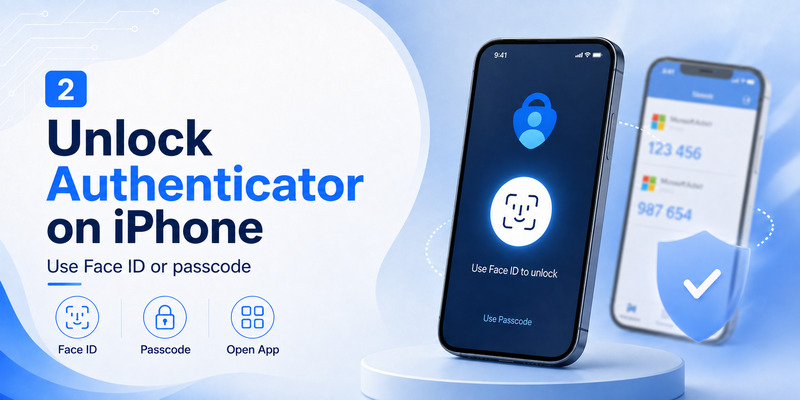
Start with Face ID or your device authentication
For users searching how to unlock microsoft authenticator on iphone, the first step is straightforward: open Authenticator and complete the biometric or device authentication requested by the application.
Microsoft states that App Lock authenticates users through the device PIN or biometric authentication.
On Face ID-capable iPhones:
- Open Microsoft Authenticator.
- Look directly at the iPhone when Face ID activates.
- Keep the TrueDepth camera unobstructed.
- Complete the authentication prompt.
- Wait for the Authenticator account list to appear.
If your question is how do i unlock microsoft authenticator on my iphone, do not begin by deleting Authenticator. Deleting the application can turn a simple biometric problem into an account-recovery problem if your credentials are not properly backed up.
A normal microsoft authenticator locked on iphone condition should generally be resolved by the device authentication method associated with the iPhone.
Turning Authenticator App Lock off
If you can open the application successfully but do not want Authenticator to request authentication every time, Microsoft says App Lock can be turned on or off from the Authenticator Settings page.
Open Authenticator and locate its Settings area, then find App Lock.
Turning App Lock off can stop Authenticator’s own repeated authentication requirement. However, consider the security tradeoff before doing so because App Lock helps protect one-time verification codes and sign-in approvals.
Also remember that this setting does not necessarily remove an iPhone-level Require Face ID lock.
If microsoft authenticator locked how to unlock is your issue, identify the layer first rather than disabling every security feature at once.
💡 Discover Helpful Guides:
Microsoft Authenticator Login: Step-by-Step Login Guide
3. Fix Face ID When Microsoft Authenticator Won’t Unlock
Confirm Face ID works outside Authenticator
When microsoft authenticator locked on iphone persists after you look at the screen, test whether Face ID itself is working.
Apple says Face ID can be used to unlock an iPhone and authenticate supported applications. Face ID requires an iPhone passcode to be configured.
Lock your iPhone and try unlocking the device normally with Face ID.
If Face ID also fails at the iPhone lock screen, the problem is probably broader than Microsoft Authenticator.
Apple recommends checking Face ID configuration and, when necessary, resetting Face ID from Settings > Face ID & Passcode > Reset Face ID and configuring it again.
This can help when microsoft authenticator won’t unlock because the biometric authentication system itself is failing.
Restart before making larger changes
If Face ID normally works but microsoft authenticator locked on iphone remains stuck, restart the iPhone before reinstalling the application.
Microsoft’s Authenticator troubleshooting guidance specifically recommends checking the device’s PIN or biometric configuration and re-enabling Face ID or fingerprint authentication when biometric-related authentication has problems. Microsoft also suggests restarting the device in relevant passwordless-authentication troubleshooting.
After restarting:
- Unlock the iPhone normally.
- Confirm Face ID is functioning.
- Open Authenticator again.
- Complete the authentication prompt.
- Test a sign-in request.
This is much safer than immediately removing accounts when my microsoft authenticator is locked.
💡 Discover Helpful Guides: Microsoft Authenticator Passwordless Sign-In: Complete Guide
4. Check Whether iPhone Itself Is Locking Authenticator
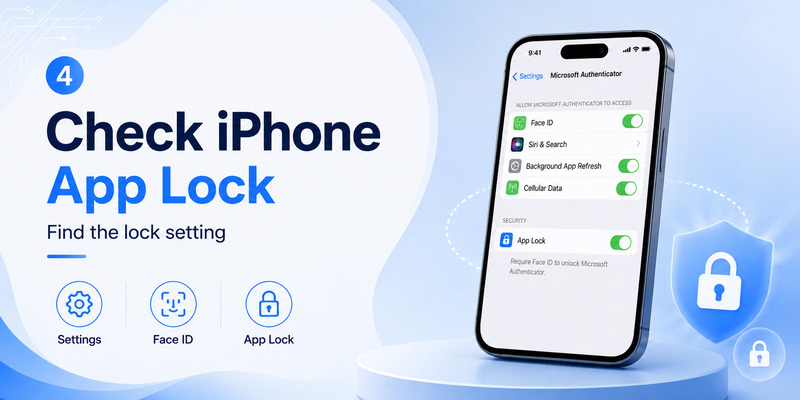
Look for Apple’s Require Face ID setting
A particularly confusing microsoft authenticator locked on iphone scenario occurs when the iPhone itself has been configured to lock Authenticator.
Apple’s current iPhone software lets users lock individual applications. If enabled, tapping the application requires Face ID, Touch ID, or the iPhone passcode.
To determine whether this is happening:
- Locate Microsoft Authenticator on the Home Screen or App Library.
- Touch and hold its icon.
- Inspect the Quick Actions menu.
- If the option says Don’t Require Face ID, Apple’s app lock is currently enabled.
- Authenticate if you choose to remove that lock.
Apple documents this process for unlocking an individually protected application.
If it instead offers Require Face ID, iOS itself is probably not the reason microsoft authenticator app locked on iphone appears.
Do not confuse Apple’s lock with Authenticator App Lock
The two features behave similarly but are controlled from different locations.
Apple’s app lock is controlled from the application’s Home Screen icon. Microsoft Authenticator App Lock is controlled within Microsoft’s application settings.
For example, you might remove Require Face ID from the iPhone Home Screen yet still encounter microsoft authenticator locked on iphone because Microsoft App Lock remains enabled.
Conversely, you could disable Microsoft App Lock and still have to authenticate before launching Authenticator because iOS Require Face ID remains active.
When users report why is my microsoft authenticator app locked, this double-lock configuration is worth checking before assuming there is an account failure.
🧭 Explore Guides: Is Microsoft Authenticator Free to Use? Everything You Need to Know
5. Fix Microsoft Authenticator Locked After an iPhone Restart
A restart can change the authentication sequence
Some users encounter microsoft authenticator locked on iphone immediately after rebooting their device.
After restarting an iPhone, complete the normal device authentication process first and confirm that your biometric setup is functioning before testing Authenticator again.
Microsoft’s troubleshooting guidance for biometric and passwordless authentication recommends confirming that a device PIN or biometric is enabled, restarting the device when appropriate, unlocking the device with the configured authentication method, and then retrying Authenticator.
If how to unlock microsoft authenticator app on iphone only becomes a problem after restarting, first focus on the iPhone’s authentication state rather than removing the Microsoft account.
Check for an outdated Authenticator version
An old application version can also complicate troubleshooting.
Microsoft lists an outdated Authenticator version among potential causes when authentication does not complete and recommends using the latest version. Microsoft also recommends checking network connectivity and correct device date and time when authentication fails.
If microsoft authenticator locked iphone appears together with other issues such as:
- Sign-in requests not completing
- Notifications failing
- Authentication prompts disappearing
- Account registration errors
update Authenticator through Apple’s App Store and test again.
Do not assume every microsoft authenticator locked on iphone message has the same root cause. App Lock, Face ID, iOS locking, outdated software, and account registration can produce different symptoms.
Download Authenticator App
Secure your accounts with fast, reliable two-factor authentication. Download now and protect your login in seconds.
6. What to Do If You Are Locked Out on a New iPhone
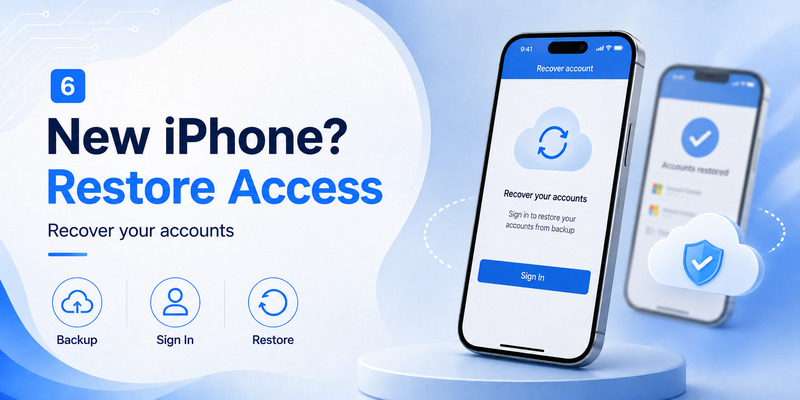
A new iPhone is an account recovery issue
The query locked out of microsoft authenticator app new phone has a different intent from a simple App Lock screen.
If your old iPhone is gone and Authenticator is installed on a new iPhone, biometric authentication is not necessarily the main problem. Your Authenticator credentials may need to be restored or re-registered.
Microsoft supports account backup and recovery for Authenticator. On iOS, current Microsoft instructions require the relevant iCloud features to be enabled for Authenticator backup. Microsoft also states that backup and restore work only between the same device type, meaning an iOS backup cannot be directly restored to Android.
Therefore, microsoft authenticator locked on iphone after changing devices should be treated differently from an ordinary App Lock prompt.
Some accounts must be signed in again
A restored backup does not make every account immediately ready for authentication.
Microsoft explains that backup behavior varies by account type:
- Some personal Microsoft accounts using one-time passwords can restore their codes.
- Passwordless Microsoft accounts may require another sign-in.
- Work or school accounts restore the account name but require the user to sign in again.
- Third-party OTP accounts such as Gmail may restore their one-time-password information.
This is why a user can restore Authenticator yet still feel locked out of microsoft authenticator app new phone.
The new device may need fresh account registration before work, school, or passwordless authentication operates normally.
💡 Discover Helpful Guides: Microsoft Account App: Setup, Security & Sign-In Guide
7. Restore Microsoft Authenticator Accounts on iPhone
Restore from an iCloud-backed Authenticator configuration
If microsoft authenticator locked on iphone actually means your accounts disappeared after changing iPhones, use Authenticator’s recovery workflow rather than repeatedly attempting Face ID.
Microsoft’s current iOS recovery instructions require iCloud Drive, iCloud Keychain, and Authenticator access through iCloud. After installing Authenticator, users can use the recovery option and then complete sign-in for accounts that require reauthentication.
Microsoft states that users should select Restore from backup or Begin recovery before signing in if they intend to perform account recovery.
If my microsoft authenticator app is locked because your new phone has no usable accounts, recovery is far more relevant than changing App Lock.
What if Restore from backup does not appear?
Microsoft says that if Restore from backup or Begin recovery is not visible, users may need to remove or sign out of existing accounts before proceeding with credential recovery.
For iPhone backups that do not appear on the new device, Microsoft’s current troubleshooting guidance includes checking the required iCloud settings, updating Authenticator, opening the application on the old device before switching where possible, and reinstalling Authenticator on the new iPhone when required.
Be cautious before deleting anything from the old phone.
If the only symptom is microsoft authenticator locked on iphone but your account data still exists, solve the lock first. Recovery should be used when credentials actually need to be transferred or restored.
💡 Discover Helpful Guides: Microsoft Authenticator Passwordless Sign-In: Complete Guide
8. Fix Microsoft Authenticator on iPhone Not Working
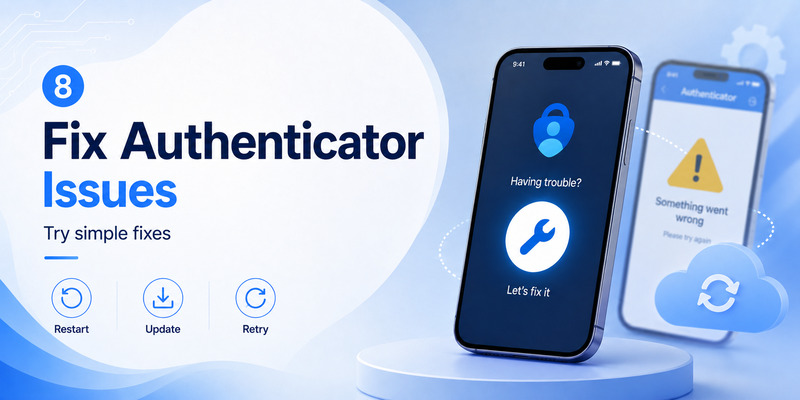
Separate unlocking problems from authentication problems
The phrase microsoft authenticator on iphone not working can describe several different failures.
A microsoft authenticator locked on iphone problem happens before you can properly use the application.
An authentication failure happens after Authenticator opens but cannot complete a request.
Microsoft lists several potential causes for incomplete authentication, including:
- The application is still locked.
- Notifications are disabled or silent.
- Authenticator is outdated.
- Network connectivity is interrupted.
- Device date or time is incorrect.
- Account credentials cannot be completed successfully.
Start by confirming that Authenticator itself is unlocked.
If the application opens successfully but a login still fails, move on to notification, network, time, and account troubleshooting.
Check notifications and connectivity
Microsoft says network connectivity or the notification channel provided by Apple or Android can affect Authenticator notifications.
If microsoft authenticator locked on iphone is resolved but you still cannot approve sign-ins:
- Confirm the iPhone is connected to Wi-Fi or mobile data.
- Check that Authenticator notifications are permitted.
- Update Authenticator.
- Confirm the phone’s date and time are correct.
- Attempt the sign-in again.
- Use another registered sign-in method if available.
For work and school accounts, Microsoft advises contacting the organization’s IT administrator when troubleshooting steps do not resolve the account-registration or authentication problem.
💡 Discover Helpful Guides: Microsoft Account App: Setup, Security & Sign-In Guide
9. How to Prevent Getting Locked Out Again
Enable backup before replacing your iPhone
Once microsoft authenticator locked on iphone is resolved, configure your recovery path before you need it.
Microsoft’s current iOS backup process relies on the relevant iCloud services being enabled for Authenticator. The company recommends having the backup configured so credentials can be recovered when moving to a new device.
Before replacing an iPhone:
- Verify that iCloud Drive is enabled.
- Confirm Authenticator is included in the appropriate iCloud settings.
- Keep Authenticator updated.
- Open Authenticator on the old phone before switching where possible.
- Confirm important accounts have another recovery or sign-in method.
This reduces the chance that microsoft authenticator locked on iphone turns into a complete account-access problem.
Keep App Lock unless you have a reason to disable it
Although App Lock can sometimes feel inconvenient, it exists for a meaningful security purpose.
Microsoft states that it helps protect verification codes, app information, settings, and sign-in approvals.
Instead of permanently disabling App Lock because microsoft authenticator locked on iphone appears frequently, first fix the underlying Face ID or device authentication problem.
Also avoid approving unexpected Authenticator requests simply because you are trying to test whether the application works. Unlocking Authenticator and approving a login are two separate actions.
A healthy configuration should allow you to unlock the Authenticator App quickly while still protecting sensitive authentication data from someone who gains physical access to your iPhone.
💡 Discover Helpful Guides: Microsoft Authenticator Desktop: Complete PC & Mac Guide
10. Microsoft Authenticator Locked on iPhone FAQ
Why is my Microsoft Authenticator locked?
If you search why is my microsoft authenticator locked, the most common explanation is Authenticator’s App Lock feature.
Microsoft says App Lock requires your device PIN or biometric authentication whenever Authenticator opens and when you approve certain sign-in notifications. It is enabled by default when a device PIN or biometric is configured.
Therefore, microsoft authenticator locked on iphone is often expected security behavior rather than an account error.
How do I unlock Microsoft Authenticator on my iPhone?
For how do i unlock microsoft authenticator on my iphone, open Authenticator and authenticate using the biometric or device authentication requested by the application.
Microsoft App Lock uses the device PIN or biometric authentication.
If Face ID is not working anywhere on the iPhone, troubleshoot or reset Face ID through Apple’s Face ID settings before making changes to Authenticator. Apple documents Reset Face ID as a troubleshooting option when Face ID fails.
Why does Microsoft Authenticator keep locking every time I open it?
This is normally how App Lock is designed to behave.
Microsoft states that when App Lock is enabled, users are asked to authenticate whenever they open Authenticator.
If microsoft authenticator locked on iphone appears every time you return to the application, check Authenticator Settings > App Lock.
Also check whether Apple’s Require Face ID feature has independently been applied to Microsoft Authenticator.
Can I disable Microsoft Authenticator App Lock?
Yes. Microsoft states that App Lock can be enabled or disabled from the Authenticator Settings page.
However, disabling it reduces one layer of protection around verification codes and sign-in approvals.
If unlock microsoft authenticator on iphone is difficult because Face ID is malfunctioning, fixing Face ID may be preferable to permanently turning App Lock off.
Why does Authenticator ask for Face ID twice?
One possible explanation is that Microsoft Authenticator is protected by both Apple’s application lock and Microsoft’s App Lock.
Apple’s Require Face ID can authenticate before the application opens, while Authenticator App Lock can request biometric authentication again inside the application.
Check both security layers if microsoft authenticator locked on iphone produces repeated authentication prompts.
What should I do if Microsoft Authenticator won’t unlock?
When microsoft authenticator won’t unlock, first test Face ID outside Authenticator.
If Face ID itself is unreliable, Apple recommends checking Face ID settings and provides an option to reset and configure Face ID again.
Next, restart the iPhone, update Authenticator, and retry. Microsoft recommends using an up-to-date Authenticator version and checking device biometric authentication when authentication does not complete.
Do not uninstall Authenticator until you know whether your accounts are backed up or can be re-registered.
I’m locked out of Microsoft Authenticator after getting a new iPhone. What now?
For locked out of microsoft authenticator app new phone, check whether an Authenticator backup exists.
Microsoft supports recovery on a new iOS device when the required iCloud backup configuration was available. Backup and restore must remain within the same device platform.
Some accounts will still require you to sign in again after restoration, particularly work or school accounts and passwordless configurations.
Does reinstalling Microsoft Authenticator unlock it?
Reinstalling is not the first recommended solution to microsoft authenticator locked on iphone.
Deleting the application may require you to restore credentials or re-register accounts afterward. Instead, first determine whether the lock comes from Microsoft App Lock, Apple’s Require Face ID feature, or a Face ID problem.
Only consider reinstalling as part of a documented recovery or troubleshooting process when you understand how your accounts will be restored.
Microsoft specifically includes reinstalling Authenticator as part of certain iOS backup troubleshooting scenarios, but that is different from using reinstall as a universal App Lock fix.
Can I lose my work account when changing iPhones?
Work or school account information can be included in an Authenticator backup, but Microsoft states that only the account name is restored for these accounts and the user needs to sign in again.
Your organization may also require the new device to be registered again.
Therefore, before replacing an iPhone, keep another valid authentication method whenever your organization allows it.
Is Microsoft Authenticator locked because my Microsoft account is locked?
Not necessarily.
A microsoft authenticator locked on iphone screen usually refers to local application protection using device authentication. Microsoft describes App Lock as a feature for protecting Authenticator data and approvals.
A Microsoft account access problem is a separate issue.
If Authenticator opens normally but your Microsoft account refuses to sign in, troubleshoot the account rather than App Lock.
💡 Discover Helpful Guides: Microsoft Authenticator Desktop: Complete PC & Mac Guide
Conclusion
The fastest way to solve microsoft authenticator locked on iphone is to first determine what is actually locked.
If Microsoft Authenticator displays its own App Lock, authenticate with the iPhone’s configured biometric or device authentication. Microsoft designed App Lock to protect verification codes, account data, settings, and approval requests, so seeing this prompt can be completely normal.
If the authentication appears before Authenticator even opens, check whether Apple’s Require Face ID feature has been applied to the app. Apple lets iPhone users independently lock applications with Face ID, Touch ID, or a passcode.
When microsoft authenticator locked on iphone persists because Face ID fails, test Face ID at the iPhone level, restart the device, update Authenticator, and reset Face ID only when necessary.
If the problem began after moving to a new iPhone, focus on Authenticator backup and account recovery instead. Microsoft supports iOS-to-iOS recovery through its current iCloud-based backup workflow, although some Microsoft work, school, and passwordless accounts must be signed in or registered again after restoration.
Most importantly, do not uninstall Authenticator simply because microsoft authenticator locked on iphone appears. Identify whether the problem is App Lock, iOS application locking, Face ID, or account recovery first. That approach gives you the best chance of restoring access without creating a larger MFA problem.
Download Authenticator App
Secure your accounts with fast, reliable two-factor authentication. Download now and protect your login in seconds.
