
Microsoft Authenticator Code Not Working: How to Fix It
When a microsoft authenticator code not working error appears, the cause usually belongs to one of four layers: the phone time, the selected account tile, the provider’s expected method, or the shared secret registered during setup. A visible six-digit value can still be wrong for the current server record.
Do not delete the account or reinstall Authenticator before confirming a recovery code, security key, alternate factor, trusted session, backup, or administrator-assisted reset.
This guide diagnoses rejected TOTP values, QR enrollment, phone migration, missing codes, rate limits, managed-account policies, and safe re-enrollment.
1. Identify Which Authenticator Code Is Failing
Record the provider prompt
Read the login screen exactly. “Enter a code from your authenticator app” usually requests TOTP. SMS, email, recovery codes, number matching, push approval, passkeys, and device PINs are different methods and cannot replace one another.
For microsoft authenticator code not working, record the provider, full username, account type, number of digits, countdown state, exact error, and time. Also note whether the code has ever worked or failed immediately after setup, restore, or phone change.
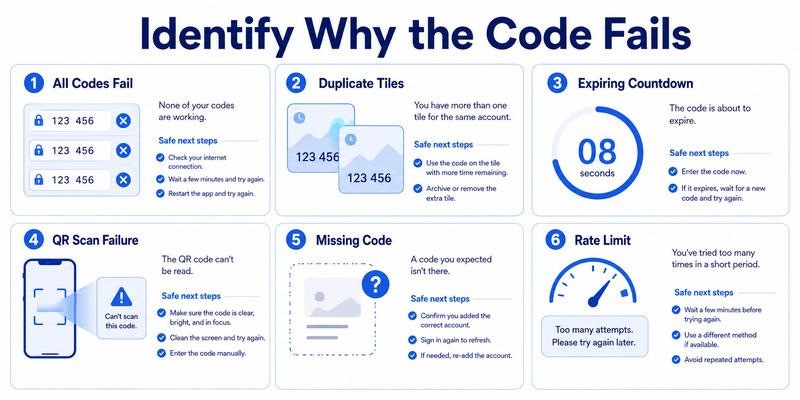
Map the failure pattern
| Pattern | Likely cause | Safe first step |
|---|---|---|
| Every fresh code fails | Time drift or stale secret | Automatic time, verify enrollment |
| One of two duplicate tiles works | Old and new secrets | Identify current server method |
| Code fails only near countdown end | Expiration in transit | Wait for next value |
| QR will not scan | Camera, display, or QR type | Update app, clean lens, use manual key |
| No code is visible | Push/passwordless or missing entry | Confirm expected method |
| Too many attempts | Provider rate limit | Stop retries and wait or recover |
Test through the provider’s official page, preferably in a private browser with duplicate sign-in windows closed. Enter one fresh value and let the server respond. Repeated guesses make both diagnosis and lockout risk worse.
The classification turns microsoft authenticator code not working into a specific problem instead of a reason to reset every account.
Create a short test log with attempt time, tile used, countdown remaining, provider response, and any alternate method offered. Never record the actual code. This evidence makes repeated microsoft authenticator code not working attempts comparable without preserving sensitive values.
🗺️ Browse How-To Guides: Microsoft Authenticator App Not Showing Code: How to Fix It
2. Correct Phone Time and Code Timing
Synchronize the device clock
TOTP combines the enrolled secret with the current time, usually in short windows. The provider calculates its own expected value. Even a modest phone-clock difference can cause every displayed code to fail.
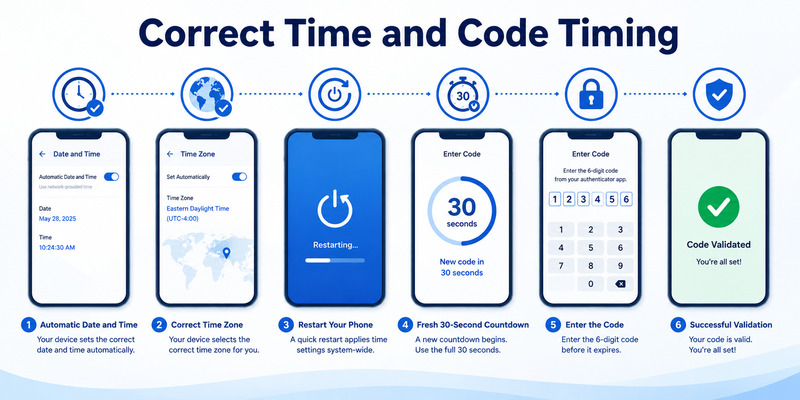
When microsoft authenticator code not working, enable automatic date, time, and time zone. Confirm the displayed zone, restart the phone, and reconnect to the network so the operating system can synchronize. Avoid manually setting the clock “close enough.”
Enter a fresh code once
Wait until a new value appears, then type every digit, including leading zeroes. Submit well before the countdown ends. Do not add spaces or punctuation unless the provider explicitly formats them.
The phone can generate standard TOTP offline after enrollment, but accurate time remains essential. The website still needs connectivity to validate the value. A network failure may display a generic error that resembles code rejection, so distinguish validation errors from page timeouts.
If a fresh code works after time correction, test a second signed-out login before declaring success. If it still fails, stop changing the clock. The likely cause moves to wrong account, wrong method, stale secret, provider policy, or rate limiting.
Document the result. Time synchronization is the fastest safe fix for microsoft authenticator verification code not working, but it cannot repair a secret that no longer matches the server.
If the provider offers a server-time or authenticator resynchronization feature, follow its official instructions only after the phone clock is correct. Do not install unknown “time sync” utilities. A controlled second test should either close the microsoft authenticator code not working case or move it to enrollment diagnosis.
3. Select the Right Account and Method
Match the complete identity
Open Authenticator and compare provider, full username, and organization with the login prompt. Personal, work, client, guest, and test accounts can have similar labels. Duplicate tiles may represent different enrollment generations.
If microsoft authenticator code not working affects one identity, test only the tile tied to the latest successful setup. Do not remove duplicates until the provider’s security information identifies the active method and a fallback has been tested.
Distinguish TOTP from Microsoft sign-in options
Number matching shows a number in the browser and asks for that number in a push prompt. It is not the rotating code. Passwordless phone sign-in and passkeys also use device-bound cryptography rather than a TOTP value.
Use “Sign in another way” only to select an already registered method. A page asking for an emailed code will not accept Authenticator TOTP. Likewise, a provider that disabled TOTP through policy will not accept the app’s displayed value.
On phones with work profiles, secure folders, cloned apps, or multiple users, make sure you opened the Authenticator instance where the account was enrolled. Credentials do not automatically cross these boundaries.
The microsoft authenticator app not showing code guide covers missing tiles. Correct identity and method selection often resolves microsoft authenticator code not working without changing the credential.
4. Fix QR Code Enrollment Problems
Confirm the QR belongs to authenticator setup
Start at the provider’s official security page and choose Authenticator app or TOTP. A generic website QR, sign-in link, payment code, or device-management code is not necessarily an authentication secret.
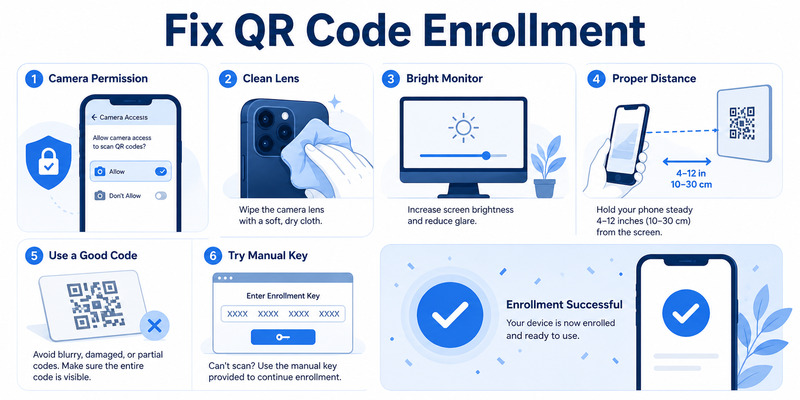
When microsoft authenticator qr code not working, update Authenticator, allow camera permission, clean the lens, increase the computer display brightness, and hold the phone steady at a moderate distance. Avoid glare, cropping, or extreme zoom.
Complete server verification
If scanning still fails, use the provider’s manual setup key when offered. Enter the secret exactly and select the provider-specified account type and algorithm settings. Never paste the key into a chat, screenshot, or untrusted converter.
After the tile appears, enter the first fresh code back into the provider’s setup page. Enrollment is incomplete until the server accepts it. A tile created from an abandoned QR session may calculate values the server never committed.
If the provider says the QR expired, cancel and generate a new one. Do not keep multiple uncertain tiles. Issue one fresh enrollment, verify it, test a signed-out login, and then label the tile clearly.
An exposed QR or manual secret must be replaced server-side because anyone who captured it can produce future codes. Secure QR handling solves both microsoft authenticator code not working and credential-copy risk.
After successful enrollment, close the setup page and perform a separate signed-out login. This distinguishes a setup confirmation from normal authentication. Record the new tile label and date so a later microsoft authenticator code not working incident does not confuse it with an obsolete entry.
5. Resolve Codes That Fail After Restore or Migration
Understand what restore transferred
Microsoft supports backup restore within the same mobile platform. Third-party TOTP entries may restore with working values, but work, school, and passwordless identities can return as names requiring sign-in or re-registration. Cross-platform restore is unsupported.
If microsoft authenticator code not working begins on a new phone, compare the restored account with the provider’s current security information. A visible tile may contain an older secret, belong to another duplicate, or require Action required completion.
Test before retiring the old phone
Keep the source phone, trusted sessions, and recovery methods. Test one low-risk provider with the replacement. For failures, confirm automatic time and the correct tile, then re-enroll through the provider instead of repeatedly restoring the same stale entry.
For Android-to-iPhone or iPhone-to-Android, add a new authenticator method service by service. Scan a newly issued QR on the replacement and verify it before removing the old credential. Do not reuse screenshots from the previous phone.
Push registration can remain tied to the old device even when TOTP restores. Treat code validation and notification delivery as separate tests. Remove the old server method only after both new-phone access and fallback recovery work.
Follow the microsoft authenticator change phone sequence. A controlled migration prevents microsoft authenticator code not working from becoming a total lockout.
6. Re-enroll a Stale TOTP Secret Safely
Preserve another access route
Before replacing the authenticator method, verify a recovery code, security key, alternate factor, recovery email or phone, trusted session, second device, or administrator reset. If none works, use formal provider recovery before making changes.
For persistent microsoft authenticator code not working, open the provider’s official security settings. Add a new authenticator method when multiple methods are allowed, or prepare to replace the old method only after the fallback succeeds.
Issue and verify a fresh secret
Generate a new QR or manual key, scan it directly, wait for a fresh code, and complete the provider’s setup verification. Then sign out in a private browser and test the new credential again.
Set the new method as preferred when appropriate. Remove the obsolete server registration, revoke stale sessions, refresh provider recovery codes, and only then delete the old phone tile. Keep an inventory record without secrets.
If the provider rejects the first code during setup, check time, account type, QR freshness, and whether another browser window invalidated the enrollment session. Cancel and start one clean setup rather than creating many tiles.
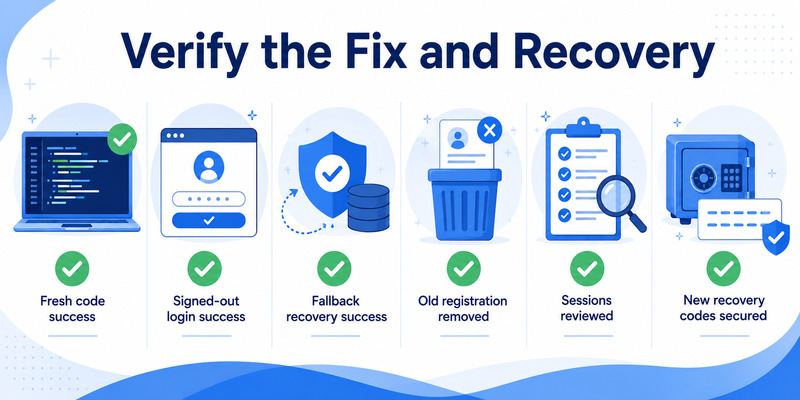
Re-enrollment is complete when the provider accepts the new code, fallback works, and the old credential no longer grants access. This provider-side proof is the decisive fix for microsoft authenticator code not working caused by a stale secret.
🗺️ Browse How-To Guides: Why Is My Microsoft Authenticator Not Working? Fixes
7. Handle Missing Codes, Rate Limits, and Work Policies
Stop repeated attempts
Providers may temporarily block or slow verification after multiple failures. Stop submitting values, close duplicate sign-in windows, and wait for the stated interval. Use the provider’s recovery or alternate-method option rather than guessing.
If microsoft authenticator code not working really means no value appears, confirm whether the account supports TOTP. A push-only, passwordless, or restored work account may legitimately show no rotating code. Complete Action required or use the registered method.
Escalate managed accounts
For work or school identities, Conditional Access, authentication methods policy, authentication strength, device compliance, risk, or location restrictions can block a method. Reinstalling Authenticator cannot override tenant policy.
Capture the timestamp, username, tenant, provider prompt, Authenticator version, phone OS, network, and exact error. Do not include the code, password, QR, manual secret, or recovery code. Contact the published help desk.
An administrator can inspect sign-in logs, authentication details, policy evaluation, and security information. They may remove a stale method, require MFA re-registration, or issue a Temporary Access Pass where supported.
Ask the administrator whether TOTP was attempted, interrupted, or rejected and which policy applied. A timestamped log result gives microsoft authenticator code not working a specific cause rather than leaving the user to repeat codes against a method the tenant may not permit.
If many users report failures at once, administrators should also review service health and recent policy changes. If only one account fails, local enrollment or account-specific policy is more likely than a general outage.
🗺️ Browse How-To Guides: Microsoft Authenticator Code Not Working: How to Fix It
8. Protect the Account During Troubleshooting
Never disclose a live value
A valid TOTP can be relayed by a phishing site before it expires. Enter codes only on an official domain you intentionally opened. Support agents, administrators, coworkers, and callers should not ask you to read out the current value.
When microsoft authenticator code not working follows a suspicious page, change the password from a trusted device, revoke active sessions, review recent activity and security methods, and notify the organization. If the QR secret was exposed, replace the authenticator enrollment.
Maintain recovery after the fix
Keep at least two independent recovery paths, such as Authenticator plus a hardware security key or securely stored recovery codes. Enable supported backup and protect its recovery identity separately.
Lock and encrypt the phone, keep it updated, enable App Lock, and use remote locate or erase. Restrict screenshots and screen sharing during setup. Remove stale registrations and retired devices promptly.
Document the root cause—time drift, wrong tile, wrong method, expired QR, incomplete restore, stale secret, rate limit, or policy—and the verified remedy. This makes future response faster without exposing credentials.
A successful microsoft authenticator code not working repair ends with provider acceptance, a signed-out test, a working fallback, clean security information, and no unexplained account activity.
9. Frequently Asked Questions
Why are all my Authenticator codes invalid?
The phone time may be wrong, the provider may expect another method, or the enrolled secret may no longer match. Enable automatic time, use a fresh value from the correct tile, and re-enroll safely if necessary.
Why does the code expire before I can enter it?
Wait until the next value appears and submit it early in its countdown. Close duplicate login windows and avoid slow copy routes. Repeated attempts can trigger rate limiting.
Why will the QR code not scan?
Confirm it is an authenticator enrollment QR, update the app, allow camera access, clean the lens, adjust screen brightness and distance, or use the provider’s manual key. Generate a fresh QR if expired.
Can I fix a stale code without removing the account?
Time correction may help. If the secret is stale, add a fresh authenticator method through provider security settings while a fallback works. Remove the old method only after the new one passes.
Why did codes fail after changing phones?
The backup may be incompatible, old, or incomplete, or the provider may require re-registration. Work and passwordless accounts often need additional action. Cross-platform moves require fresh enrollment.
Is not receiving a sign-in request a code problem?
No. Push notification delivery and TOTP code generation are separate. Check network, notification permission, battery background access, and server device registration for missing push requests.
10. Final Thoughts
A microsoft authenticator code not working error should be diagnosed in order: requested method, correct identity, automatic time, fresh countdown, current enrollment, restore state, rate limit, and provider policy.
Do not erase credentials before confirming recovery. A visible code is only a local calculation; the provider must expect the same secret and accept the value.
For QR problems, start one clean enrollment from the official security page and complete the server’s verification. Protect the QR and manual key as long-lived secrets.
After a phone change, test restored TOTP, push, and fallback separately. Re-enroll service by service for cross-platform moves, and involve administrators for managed-account policy.
For compatible providers, evaluate a reputable Authenticator App by publisher, secure storage, backup, recovery, export controls, and standards support. Resolve microsoft authenticator code not working through provider-verified access, then preserve independent recovery for the next device or account change.
Finish with a compact acceptance checklist: one fresh code succeeds, another signed-out login succeeds, fallback works, the old registration is removed, active sessions are reviewed, and recovery codes are current. Keep the result in an account inventory without recording live values or secrets. When every item passes, the microsoft authenticator code not working repair is complete and repeatable rather than a temporary lucky login.
Download Authenticator App
Secure your accounts with fast, reliable two-factor authentication. Download now and protect your login in seconds.
