
Microsoft Authenticator App for Android: Setup in 5 Minutes
If you need a simple way to protect Microsoft, work, school, and other supported online accounts, microsoft authenticator app for android is one of Microsoft’s official authentication tools for Android devices.
The app can be used for multi-factor authentication, two-step verification, verification codes, passwordless sign-in, and other authentication scenarios depending on the account you connect. The current Google Play listing describes Microsoft Authenticator as supporting both multi-factor and passwordless authentication for online accounts.
For many users, however, the confusing part is not deciding whether they need an authenticator. It is understanding exactly where to download it, how to connect an account, what the numbers inside the app mean, and what to do when an approval notification never arrives.
This guide focuses specifically on installing and using microsoft authenticator app for android. You will learn how to get the official version, scan a QR code, add personal and work accounts, approve sign-in requests, use verification codes, troubleshoot common Android problems, and prepare the app before changing phones.
1. What Is Microsoft Authenticator App for Android?
Before installing microsoft authenticator app for android, it helps to understand what the application actually does.
Microsoft Authenticator is a free mobile authentication application from Microsoft. Microsoft describes it as an app that can help users access personal Microsoft accounts, work or school accounts, and other supported accounts, including scenarios where a password is not used.
What does Microsoft Authenticator do?
If you search what is microsoft authenticator app, the simplest explanation is that it provides another way to prove that you are really the person trying to access an account.
Consider a standard login:
- You enter your username.
- You enter your password.
- The service requests another verification step.
- You open microsoft authenticator app for android.
- You approve the request or enter a temporary verification code.
That extra step is commonly called multi-factor authentication, or MFA.
Microsoft’s Google Play listing states that Authenticator can provide authentication by approving a notification or using a one-time password generated by the app.
Is Microsoft Authenticator only for Microsoft accounts?
No.
Although microsoft authenticator app for android is produced by Microsoft, the application can also store compatible time-based one-time password credentials for various non-Microsoft services.
Microsoft states that Authenticator can be used with Microsoft personal accounts, work or school accounts, and other accounts.
The exact setup process can differ. Microsoft accounts may support push notifications and passwordless capabilities, while many third-party accounts use rotating verification codes.
That distinction becomes important when learning how to use microsoft authenticator app because not every account added to Authenticator has exactly the same features.
💡 Discover Helpful Guides: Microsoft Authenticator: Complete Setup, Login, Backup & Troubleshooting Guide
2. How to Download Microsoft Authenticator App for Android
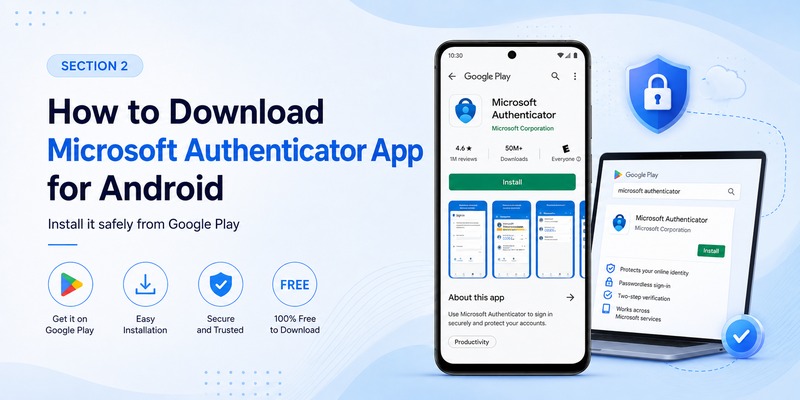
The safest way to get microsoft authenticator app for android is through Microsoft’s official download authenticator app or Google Play.
Microsoft’s current support page directs Android users to install Authenticator through Google Play.
Step 1: Open Google Play
On your Android phone:
- Open Google Play.
- Search for Microsoft Authenticator.
- Verify that you are looking at the official Microsoft application.
- Select Install.
- Wait for installation to finish.
- Open the app.
The official Google Play listing describes the application as Microsoft Authenticator and identifies its authentication features for personal, work, and school accounts.
This is the recommended method for anyone searching download microsoft authenticator app for android.
Is Microsoft Authenticator free?
Yes. If your question is is the microsoft authenticator app free, Microsoft describes Authenticator as a free application.
You do not need to purchase a separate subscription simply to install the official microsoft authenticator app for android.
This also means searches such as free microsoft authenticator app for android, microsoft authenticator app for android free, and microsoft authenticator app for android free download should lead back to the official application rather than third-party APK websites charging for access.
Avoid unnecessary third-party downloads
Because an authenticator contains sensitive authentication credentials, downloading modified or unofficial versions introduces unnecessary security risk.
For microsoft authenticator app for android download, use Google Play or Microsoft’s official Authenticator download page whenever possible. Microsoft explicitly directs Android installations to Google Play.
After installation, continue with account registration rather than searching for a separate activation key for the application itself.
💡 Discover Helpful Guides: Microsoft Authenticator Passwordless Sign-In: Complete Guide
3. Microsoft Authenticator Android Requirements
Another common question is whether a particular phone can run microsoft authenticator app for android.
The practical microsoft authenticator android requirements include a supported Android device, an up-to-date Authenticator installation, and the permissions necessary for the authentication features you intend to use.
Check compatibility directly in Google Play
Android compatibility can change as applications and operating systems evolve. For that reason, Google Play should be treated as the immediate compatibility check for the specific phone where you plan to install microsoft authenticator app for android.
Microsoft also says it does not support Authenticator app versions more than 12 months old and recommends keeping the application current.
If Google Play reports that your phone is incompatible, updating Android may help if an OS update is available.
Keep Android updated
A phone running a current Android security patch and current Authenticator version is preferable to keeping authentication credentials on an unsupported device.
Microsoft’s troubleshooting documentation recommends making sure the device, Authenticator, and related security applications are up to date.
For normal use of microsoft authenticator app for android, also check:
- Internet access for push-based authentication.
- Notification permissions.
- Correct device date and time.
- Screen lock protection.
- Camera permission when scanning QR codes.
- Enough storage to update the app.
Some time-based verification codes can continue to function without a live network connection because they are generated locally, while push approvals require connectivity. The Google Play description notes that time-based OTP codes can be generated without a network connection.
4. How to Set Up Microsoft Authenticator App for Android
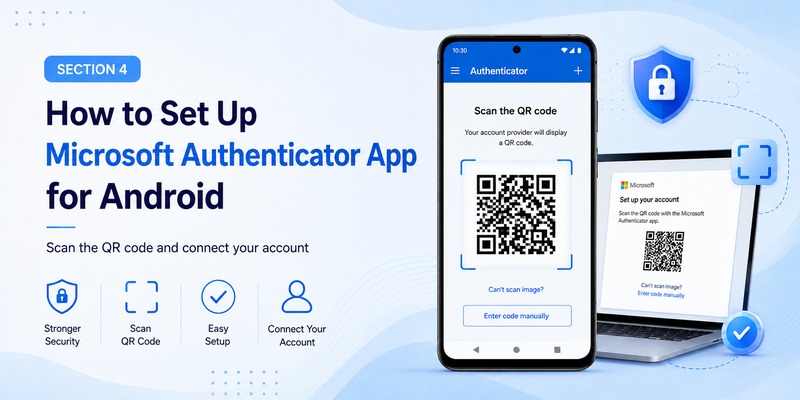
Once microsoft authenticator app for android has been installed, you need to connect it to the account you want to protect.
The most common setup involves displaying a QR code on another screen and scanning it with your Android phone.
Step 1: Open Authenticator
Launch the Authenticator App on Android.
Select the option to add an account.
Depending on your version and account type, you may see categories such as:
- Personal account.
- Work or school account.
- Other account.
Choose the option corresponding to the service you are configuring.
Step 2: Begin security setup on another device
On your computer or another device, open the security settings for the account.
Choose Microsoft Authenticator or an authenticator application as an authentication method.
The service may then display a QR code.
Microsoft’s official account setup instructions describe this QR-code process when adding supported accounts to Authenticator.
Step 3: Scan the QR code
Return to microsoft authenticator app for android and choose the QR-code scanning option.
Point the Android phone at the QR code displayed on your computer.
Do not take a screenshot and send your QR code to another person. That QR code can contain information used to establish the authentication credential.
After scanning, the account should appear inside Authenticator.
Step 4: Complete the verification test
Many Microsoft setups perform a test request after registration.
Your phone may display a notification asking you to approve the sign-in or complete number matching.
Finish the verification process before closing the setup page.
That confirms that microsoft authenticator app for android has been connected successfully.
5. How to Add a Personal Microsoft Account
If you use Outlook.com, OneDrive, Xbox, Microsoft 365 Personal, or other consumer Microsoft services, you may want to connect your personal account to microsoft authenticator app for android.
Microsoft provides several Authenticator options for personal accounts, including using the app as part of two-step verification and passwordless authentication.
Add the account from the Android app
Open Authenticator and select the add-account option.
Choose a personal Microsoft account.
Follow the on-screen login instructions.
Microsoft’s documentation explains that a Microsoft personal account can be registered with Authenticator and can subsequently use the app as a sign-in method.
Once added, microsoft authenticator app for android may display the account in the main Authenticator screen.
Enable two-step verification
You can also manage two-step verification through your Microsoft account security settings.
Microsoft explains that two-step verification adds another identity check when a user signs in from a new location or device.
A typical flow becomes:
Password → Microsoft Authenticator verification → account access
Depending on the configuration, you may also use Authenticator in passwordless scenarios.
Using microsoft authenticator app for android does not mean you should forget about recovery methods. Before depending on one phone as your only authentication device, review the recovery information attached to the account.
💡 Discover Helpful Guides: Microsoft Authenticator: Complete Setup, Login, Backup & Troubleshooting Guide
6. How to Add a Work or School Account
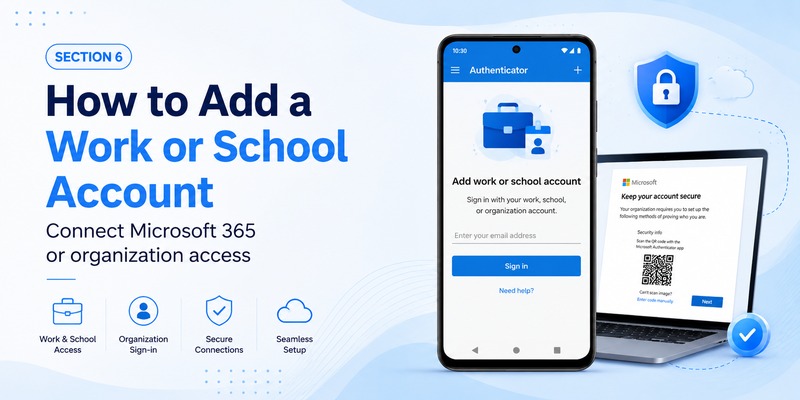
Many people first encounter microsoft authenticator app for android because their employer or school requires Microsoft 365 MFA.
The setup is similar to a personal account, but the organization’s administrator can control which authentication methods are allowed.
Start from Security Info
On a computer, sign in to the work or school account and open the organization’s Security Info setup when instructed.
Choose to add an authentication method and select Microsoft Authenticator when available.
A QR code may appear.
On Android:
- Open microsoft authenticator app for android.
- Select Add account.
- Choose Work or school account.
- Select the QR scanning option.
- Scan the code displayed on the computer.
- Complete the verification request.
Microsoft documents Authenticator as a supported method for Microsoft Entra authentication, including push-based verification and verification codes.
Your organization controls some settings
A work account may not behave exactly like a personal account.
For example, the administrator can determine which authentication methods are permitted. Some organizations may also require device compliance or related Microsoft management applications.
Microsoft’s Android troubleshooting guidance notes that work or school environments can involve applications such as Intune Company Portal and device compliance requirements.
Therefore, if microsoft authenticator app for android works for your personal account but not your company account, the problem may be related to organizational policy rather than the Android app itself.
💡 Discover Helpful Guides: Microsoft Authenticator Passwordless Sign-In: Complete Guide
7. How to Use Microsoft Authenticator App for Android
After setup, how do you use microsoft authenticator app in everyday situations?
The answer depends on whether your service uses a push approval, number matching, verification code, passwordless login, or another supported authentication method.
Method 1: Approve a notification
Start signing in to your account on a computer or another device.
Enter your username and other requested credentials.
If Authenticator verification is required, a notification may appear on the Android phone.
Open microsoft authenticator app for android and review the request.
Only approve it if you initiated the sign-in.
Method 2: Complete number matching
Microsoft’s current Authenticator sign-in instructions describe a workflow where the sign-in screen displays a number and the user opens Authenticator to enter or select the matching value before approving.
This means you should look at both devices rather than automatically pressing Approve.
Method 3: Enter a verification code
Some accounts use a temporary code displayed by microsoft authenticator app for android.
Open the relevant account in the app and enter the current code into the website requesting verification.
This is a common answer to how to use microsoft authenticator app with third-party services that support standard authenticator codes.
Never approve a request you did not start
If an unexpected Authenticator request appears, deny it.
An authentication notification is asking for permission to continue a login. It is not something that should be approved simply to make the notification disappear.
This habit is one of the most important parts of safely using microsoft authenticator app for android.
8. How the 6-Digit Verification Code Works
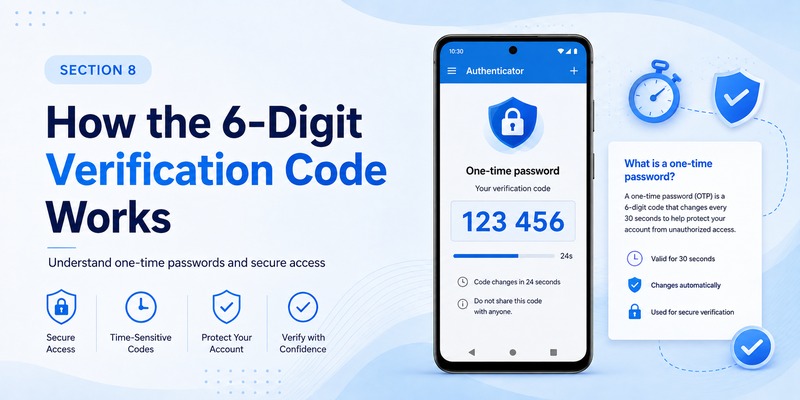
Users often expect every account in microsoft authenticator app for android to show the same type of code, but authentication formats can differ.
A common format is the microsoft authenticator app 6 digit code.
Why the code changes
Many authenticator codes are time-based one-time passwords, commonly called TOTP codes.
The Google Play description for Microsoft Authenticator explains that OTP codes use a timer and that a generated code is temporary.
That means:
- You open microsoft authenticator app for android.
- A current code appears.
- You enter the code into the requesting service.
- The code changes after its short validity period.
- The older code should no longer be relied on.
You do not need to memorize these numbers.
Does the phone need internet for a code?
Time-based OTP generation can work without a network connection because the code is generated from the stored credential and time on the device. The Microsoft Authenticator Google Play listing specifically notes that OTP generation does not require network connectivity.
However, the Android phone’s date and time must remain accurate.
Microsoft also recommends verifying correct device date and time when troubleshooting Authenticator problems.
Why do I see 8 digits instead of 6?
Searching microsoft authenticator app 8 digits instead of 6 usually means the user expects one code format while the connected service is presenting another authentication configuration.
Do not manually shorten an 8-digit value to six digits.
Use exactly the authentication method and value requested by the service. If a website specifically expects a six-digit TOTP but microsoft authenticator app for android presents something inconsistent, remove nothing and verify that the account was registered using the correct QR code and authentication method before making changes.
9. How to Approve Sign-In Requests on Android
Push approval is one of the most convenient ways to use microsoft authenticator app for android.
Suppose you sign in to Microsoft 365 on a computer.
After entering your account information, the computer may display a message telling you to check Authenticator.
Open the notification
On Android, tap the new sign-in notification or open Authenticator manually.
Microsoft’s sign-in instructions state that users may open Authenticator or tap the new sign-in request notification and then complete the corresponding number-matching process.
If the computer displays a number, verify it carefully.
Approve only when:
- You started the login.
- The account is correct.
- The number corresponds with the session.
- The timing of the request makes sense.
What if no notification appears?
Do not immediately assume microsoft authenticator app for android has lost your account.
First open Authenticator manually.
Then check Android notification settings and connectivity.
Microsoft recommends verifying that notifications are enabled and testing Wi-Fi versus mobile data when Authenticator notifications fail.
If the account supports another authentication method, the sign-in screen may also offer an alternative.
💡 Discover Helpful Guides: Microsoft Account App: Setup, Security & Sign-In Guide
10. Microsoft Authenticator App Not Working: How to Fix It
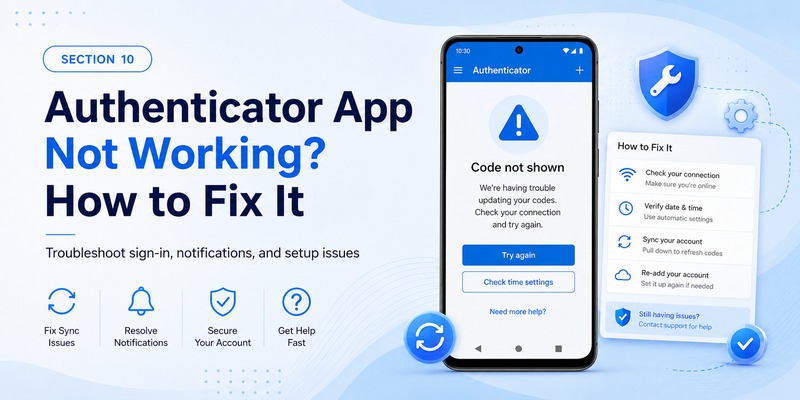
The search my microsoft authenticator app is not working can refer to several different problems.
You may have no notification, a sign-in may remain pending, the app may fail to open correctly, or the account may not appear.
Use the following troubleshooting order before deleting anything.
Fix 1: Check internet connectivity
Push-based microsoft authenticator app for android requests require communication between the service and the phone.
Switch between Wi-Fi and mobile data.
Make sure Airplane Mode is disabled.
Microsoft specifically recommends switching networks when investigating Authenticator connectivity problems.
Fix 2: Check notifications
Open Android Settings and find Authenticator’s notification permissions.
Make sure notifications are allowed.
Microsoft’s troubleshooting documentation also provides a notification setting inside Authenticator and recommends ensuring that notifications are enabled.
Fix 3: Update Authenticator
Open Google Play and check for an update.
Microsoft states that versions of Authenticator more than 12 months old are not supported.
Running a current version of microsoft authenticator app for android is particularly important because authentication and platform security requirements evolve.
Fix 4: Check the phone’s time
Set Android date and time to automatic whenever possible.
Incorrect time can interfere with time-based verification codes.
Microsoft specifically includes checking the device date and time among Authenticator troubleshooting recommendations.
Fix 5: Review battery optimization
Aggressive Android battery-management settings can interfere with background app behavior.
Microsoft’s current troubleshooting instructions suggest turning off battery optimization for Authenticator when better synchronization performance is needed.
Fix 6: Temporarily test without VPN
If Authenticator behaves incorrectly while a VPN is active, Microsoft recommends disconnecting the VPN temporarily to determine whether the problem remains.
Do not clear app data casually
Android offers a Clear Data option for applications, but this is a particularly risky troubleshooting action for an authenticator.
Microsoft warns that clearing Authenticator app data removes all accounts from that device and that the action cannot simply be undone locally.
Before resetting microsoft authenticator app for android, make sure you have another authentication or recovery method.
11. How to Move Microsoft Authenticator to a New Android Phone
Phone replacement is easier when you prepare before the old Android device disappears.
Microsoft Authenticator provides backup and recovery capabilities, but users should understand the limitations before relying entirely on them.
Enable backup before changing phones
If your current microsoft authenticator app for android installation offers backup, configure it while you still have access to the original phone.
Then set up Authenticator on the replacement device and use the available recovery process.
Microsoft’s restore documentation says users can choose Restore from backup and sign in using the personal Microsoft account associated with the Authenticator backup.
Android backups restore to Android
Microsoft states that Authenticator backup and restore must remain within the same device platform type. An iOS backup cannot simply be restored onto Android, and vice versa.
Therefore, moving microsoft authenticator app for android from one Android device to another is different from moving from iPhone to Android.
Some accounts may require registration again
Restoring the account list does not guarantee that every account is immediately ready for authentication.
Certain work or school credentials may require additional verification or registration.
Before wiping or selling the original phone:
- Set up the new Android phone.
- Restore what can be restored.
- Test important Microsoft accounts.
- Test work or school accounts.
- Confirm MFA notifications.
- Confirm verification codes where applicable.
- Only then remove access from the old device.
This approach reduces the chance of being locked out after moving microsoft authenticator app for android.
12. Microsoft Authenticator App for Android FAQ
Is Microsoft Authenticator app for Android free?
Yes. Microsoft describes Authenticator as a free authentication application.
You can obtain microsoft authenticator app for android through Google Play without buying a separate Authenticator subscription.
Where should I download Microsoft Authenticator for Android?
Use the official Google Play listing or start from Microsoft’s official Authenticator download page, which directs Android users to Google Play.
Avoid unofficial copies when a verified distribution channel is available.
How do you use Microsoft Authenticator app after installing it?
Add the account you want to protect, usually by signing in or scanning a QR code. When that account requests authentication, open microsoft authenticator app for android and approve the legitimate request, complete number matching, or enter the temporary code requested by the service.
Can Microsoft Authenticator work without internet?
It depends on the authentication method.
Time-based OTP codes can be generated locally and do not require a live internet connection, according to Microsoft’s current Google Play description.
Push notifications and online approval requests, however, generally require connectivity.
Why am I not receiving Microsoft Authenticator notifications?
Check that microsoft authenticator app for android has notification permission, that the phone is online, that Airplane Mode is off, and that Authenticator is current.
Microsoft also recommends checking battery optimization, date and time, VPN use, and device updates.
Why does Microsoft Authenticator show a six-digit code?
The microsoft authenticator app 6 digit code is commonly a temporary authentication value used by services that support authenticator-based OTP verification.
The number changes over time rather than acting like a permanent password. Microsoft’s Google Play description explains that Authenticator OTP codes use a repeating time window.
Should I type my Authenticator code into an email or message?
No.
Enter authentication codes only into the legitimate service where you personally initiated the login.
Do not send a current Authenticator code to someone who asks for it through chat, email, phone, or social media.
The purpose of microsoft authenticator app for android is to prove control of your authentication factor. Sharing the code defeats that protection.
Can I add multiple accounts?
Yes. Microsoft’s Google Play description says multiple accounts can be added to Authenticator, including supported non-Microsoft services.
This means one installation of microsoft authenticator app for android can potentially manage authentication for several accounts instead of requiring a separate Authenticator installation for each service.
Can I use Microsoft Authenticator for work and personal accounts together?
Yes, supported personal, work, and school Microsoft accounts can be used with Authenticator.
However, work accounts may be subject to additional policies configured by the organization.
What should I do before uninstalling Authenticator?
Make sure you have alternative access to every important account.
Do not assume reinstalling microsoft authenticator app for android will automatically recreate all authentication credentials.
Microsoft warns that clearing application data removes all accounts from Authenticator on the device.
Backup or register another authentication method first whenever possible.
Is Microsoft Authenticator only for two-factor authentication?
No. Microsoft describes Authenticator as supporting several authentication scenarios, including MFA, verification codes, and passwordless sign-in for supported accounts.
The exact capabilities you see in microsoft authenticator app for android depend on the account and its security configuration.
Do I need to enter a verification code every time?
No.
Some sign-ins use push approval or number matching rather than a manual code.
Microsoft’s current Authenticator sign-in process can display a number on the sign-in device and ask the user to confirm the corresponding number in the app.
What happens if I lose my Android phone?
Use another authentication or recovery method associated with the account. For work or school accounts, you may need assistance from your organization’s IT administrator if the missing phone contained your only usable authentication method.
If you enabled an appropriate Authenticator backup beforehand, recovery to another Android phone may restore supported information.
This is why recovery planning should be part of setting up microsoft authenticator app for android, not something considered only after the phone is lost.
Conclusion
Microsoft authenticator app for android provides a straightforward way to add another authentication layer to Microsoft personal accounts, Microsoft work or school accounts, and many other supported online services. Microsoft currently distributes the Android application through Google Play and describes Authenticator as a free mobile authentication app.
The recommended setup is simple: install the official app from Google Play, add the appropriate account, scan the QR code when required, complete the initial verification, and then test a new login before considering the setup complete.
In everyday use, microsoft authenticator app for android may ask you to approve a notification, match a number displayed on another device, or enter a temporary OTP code. Which method appears depends on the account and its security configuration.
If microsoft authenticator app for android stops working, begin with the least destructive fixes: verify the network connection, open the app manually, enable notifications, update Authenticator, check Android date and time, review battery optimization, and temporarily test without a VPN. Microsoft recommends these troubleshooting steps before more drastic actions.
Most importantly, do not clear Authenticator data or remove your only working authentication method until you have another way to access your accounts. Microsoft warns that clearing Authenticator’s Android application data removes the accounts stored on that device.
Used correctly, microsoft authenticator app for android can make account verification faster while reducing dependence on passwords alone. Download it from an official source, keep the Android device and app updated, approve only sign-ins you personally initiate, and prepare a recovery method before changing or losing your phone.
Download Authenticator App
Secure your accounts with fast, reliable two-factor authentication. Download now and protect your login in seconds.
